How to Make a Burning Bridges AI Video (Step-by-Step)
A complete guide to putting yourself in the viral Drake Burning Bridges party scene using one simple photo.
 Burning Bridges AI Team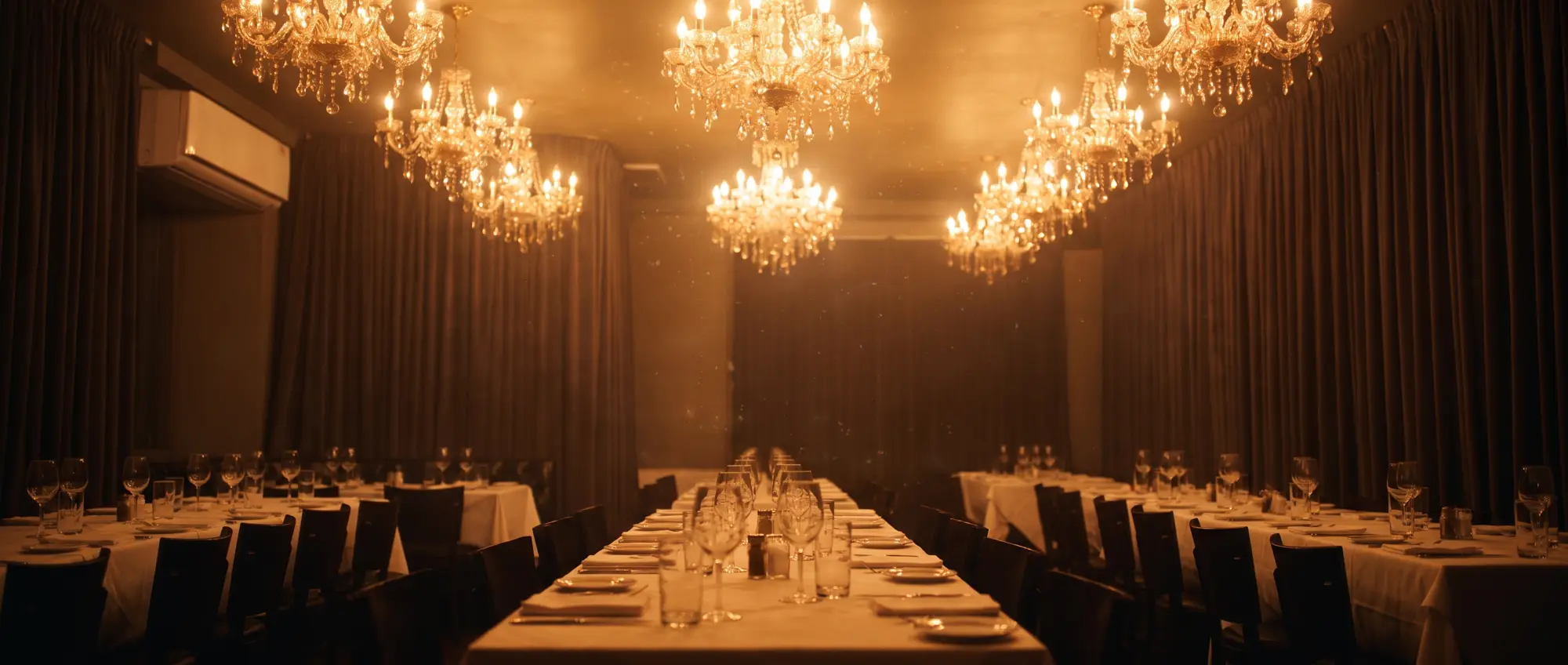
Creating your own Burning Bridges AI party video used to require hours of tinkering with ComfyUI, Kling AI, or Runway Gen-3. With dedicated generator tools, you can now place yourself—or your friends—into the viral Drake ballroom scene in less than 10 minutes.
Here is the complete step-by-step walkthrough to get flawless, cinematic results that look like they were shot on a Hollywood camera.
What Is the Burning Bridges AI Video Trend?
The trend recreates the iconic chandelier ballroom scene from Drake's music video for Burning Bridges. In the clip, the lead protagonist strides through a pulsating crowd of cheering partygoers, flicks their hand toward the camera with effortless confidence at the 2.3-second beat drop, and raises a silver cocktail cup in a toast.
When powered by advanced facial diffusion models, the AI seamlessly wraps your face and hairstyle onto the swaggering party host, matching the warm amber lighting, motion blur, and film grain of the original clip.
Step 1: Select or Take the Ideal Source Photo
The AI model relies directly on your input photo to construct a 3D facial likeness. Choosing the right photo makes the difference between an uncanny avatar and a breathtaking cinematic render:
- Front-facing angle: Look straight into the lens. A slight head tilt is acceptable, but extreme profiles make facial mapping harder.
- Natural, even lighting: Soft daylight or front-facing indoor lighting works best. Avoid harsh directional shadows that split your face in half.
- Neutral or confident expression: A subtle grin, confident smirk, or calm gaze works best. Avoid open-mouth screaming or exaggerated contortions.
- No face obstructions: Remove dark sunglasses, bulky hats, or hands covering your chin or forehead.
- Single individual: Ensure you are the only face in your main photo. You can add friends into the background crowd separately.
Step 2: Choose Your Video Duration and Quality
On our online video generator, you can customize the format to match your goals:
-
15 Seconds (Standard Viral Clip):
- Perfectly timed for TikTok, Instagram Reels, and YouTube Shorts.
- Captures the initial swagger walk, the iconic hand gesture at 2.3s, and the triumphant drink toast.
- Fastest rendering time (typically 3 to 5 minutes).
-
Full 29 Seconds (Extended VIP Cut):
- Delivers the entire uncut sequence, including Drake walking past the camera and interacting with the crowd.
- Ideal for longer YouTube videos, Instagram feed posts, or high-effort meme edits.
-
Resolution Settings:
- 480p SD: Great for quick mobile previews and casual group chat sharing.
- 720p HD: Recommended for crisp uploads to social media algorithms that favor high-bitrate video.
Step 3: Add Friends into the Crowd (Optional)
Want to turn the party into a reunion with your real-life crew?
Under the More options panel on the generator, you can upload up to 5 additional portraits. The AI replaces members of the dancing crowd behind you with your friends in the exact sequence you upload them.
- Slot 1: The dancer directly over your right shoulder.
- Slot 2: The friend laughing over your left shoulder.
- Slots 3–5: Background guests clapping and raising drinks.
Step 4: Generate and Review Your Render
Click Generate Video and let the GPU cloud cluster do the heavy lifting:
- The system takes between 3 to 10 minutes depending on server queue depth.
- Once completed, preview your video directly in the browser player.
- Download the high-definition MP4 file to your phone or computer.
Step 5: Add the Official Sound on TikTok & Instagram
To prevent copyright takedowns and maximize algorithmic discoverability, generated MP4 files are exported silent.
When posting on social media:
- Open TikTok or Instagram Reels and import your downloaded video.
- Tap Add Sound and search for
Drake - Burning Bridges. - Use the sound trimmer so the lyric "Where she at?" syncs right as your character flicks their hand at the 2.3-second mark.
- Set the video's original audio to 0% and the trending music to 100%.
Check out our detailed guide on How to Add the Official Sound on TikTok & Instagram for extra tips.
Ready to Make Yours?
You don't need a high-end gaming PC or video editing experience. Head over to our Burning Bridges AI Generator and upload your photo now!